> For the complete documentation index, see [llms.txt](https://docs.informationhub.io/llms.txt). Markdown versions of documentation pages are available by appending `.md` to page URLs; this page is available as [Markdown](https://docs.informationhub.io/tutorial/beginner.md).
# Beginner: Getting Started
This section covers the foundations: creating a project, organising your team, building a table and form, collecting data, and sharing your form with field workers. By the end you will have a complete data collection workflow.
{% hint style="info" %}
If you do not have an account yet, see [Create an Account](/getting-started/register.md) first.
{% endhint %}
***
## Step 1: Create the project
Every piece of work in Information Hub lives inside a project. A project groups your data, files, forms, team members, and tools together.
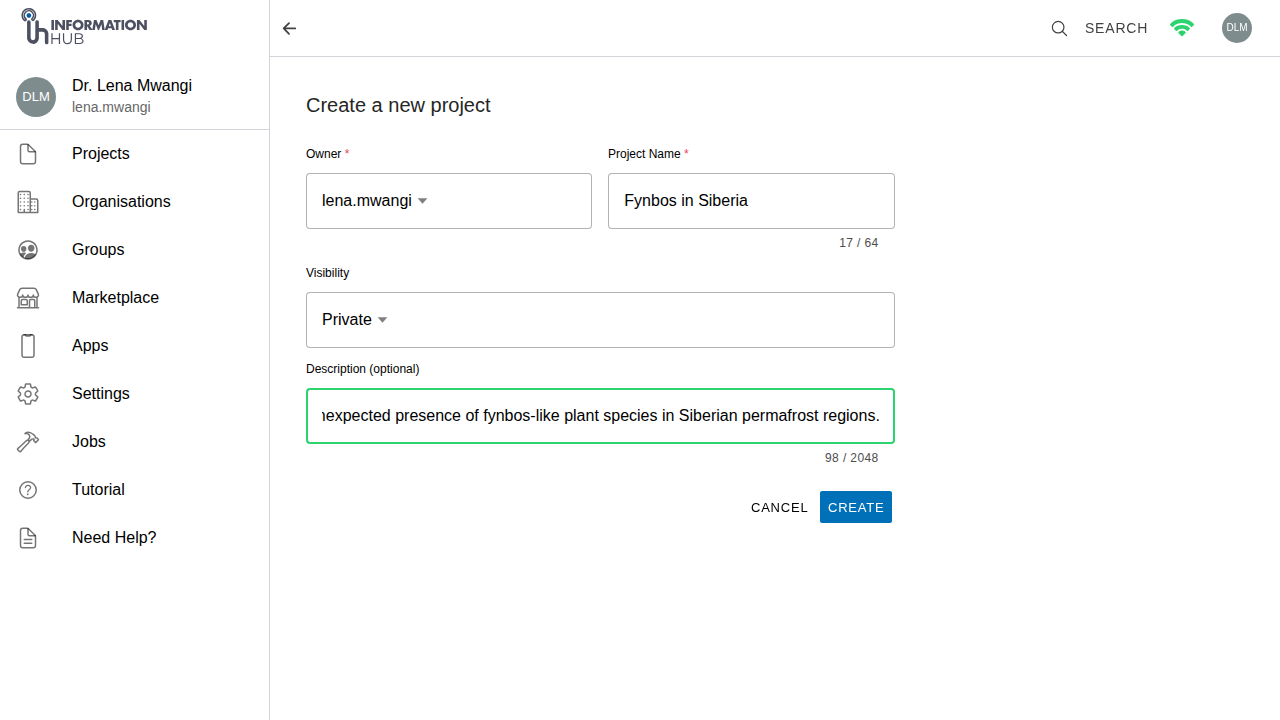
1. From the Home screen, click the **+** button to create a new project.
2. Enter the name **Fynbos in Siberia**.
3. Set the visibility to **Private** (only invited members will have access).
4. Add a description, for example: *"Investigating the survival of South African fynbos species under Siberian climatic conditions across two field sites."*
5. Click **Create**.
Creating the project
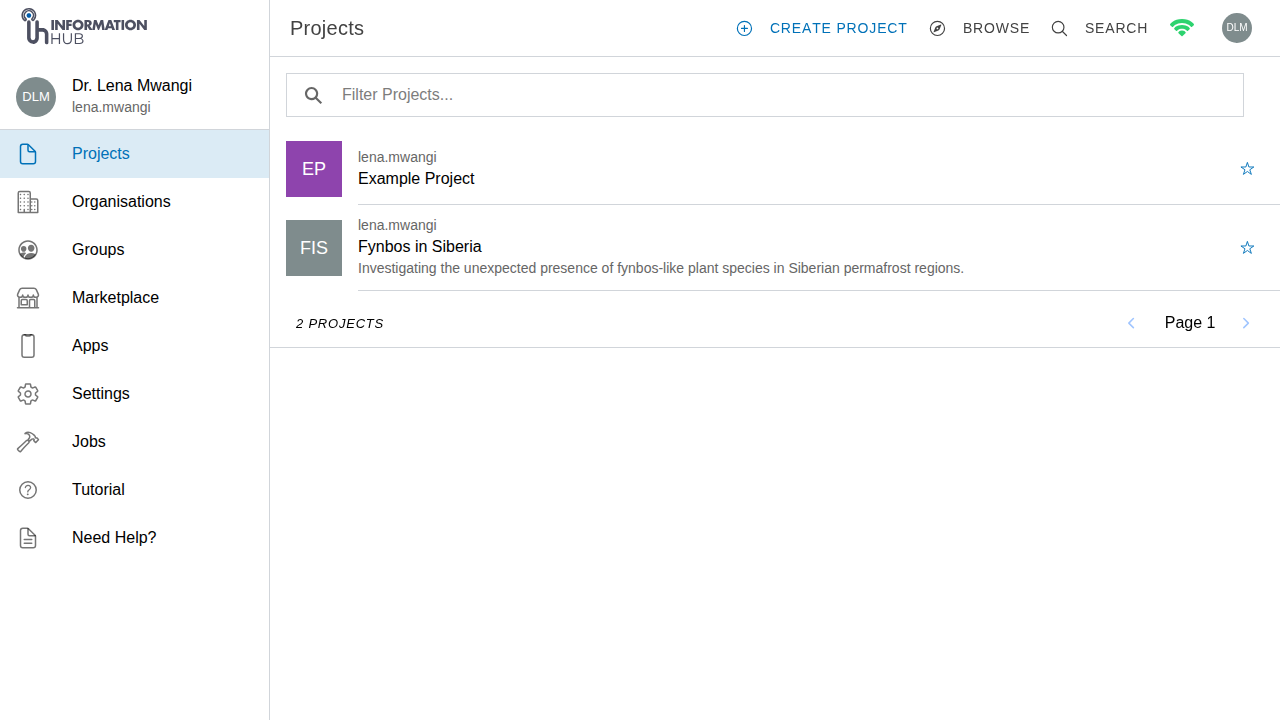
Your new project appears in the sidebar. Click on it to open the project workspace.
The project is ready
***
## Step 2: Set up your organisation and group
Before adding data, Dr. Mwangi sets up her team structure. Information Hub uses a hierarchy of **organisations**, **groups**, and **projects** to manage people and permissions.
### Create an organisation
An organisation is the top-level container. It represents your institution, lab, or company.
1. From the Home screen, click **Organisations** in the sidebar.
2. Click the **+** button to create a new organisation.
3. Enter the name **Mwangi Research Lab**.
4. Click **Create**.
### Create a group
Groups sit inside organisations and let you organise people by team, department, or role.
1. Open the **Mwangi Research Lab** organisation.
2. Click **Groups** in the sidebar, then click the **+** button.
3. Enter the name **Siberian Field Team**.
4. Click **Create**.
### Add team members
1. Open the **Siberian Field Team** group.
2. Click **Members**, then click the **+** button to invite members.
3. Add **Dr. Yuki Tanaka** and **Dr. Pavel Volkov** by entering their email addresses.
4. Assign each member an appropriate role (e.g., **Member**).
***
## Step 3: Understand permissions
Information Hub uses role-based permissions at four levels:
| Level | What it controls |
| ---------------- | ------------------------------------------------------- |
| **Site** | Platform-wide access (managed by administrators) |
| **Organisation** | Who can manage the organisation and its groups |
| **Group** | Who belongs to the group and what they can do inside it |
| **Project** | Who can view, edit, or manage a specific project |
Permissions **trickle down** through the hierarchy. If Dr. Tanaka has the Member role in the **Siberian Field Team** group, and that group is linked to the **Fynbos in Siberia** project, she automatically inherits the appropriate project permissions.
For now, the default roles are sufficient. You will learn how to configure custom permissions in the [Advanced](/tutorial/advanced.md) section.
***
## Step 4: Create the Species Observations table
Dr. Mwangi needs a structured table to store every observation her team records in the field.
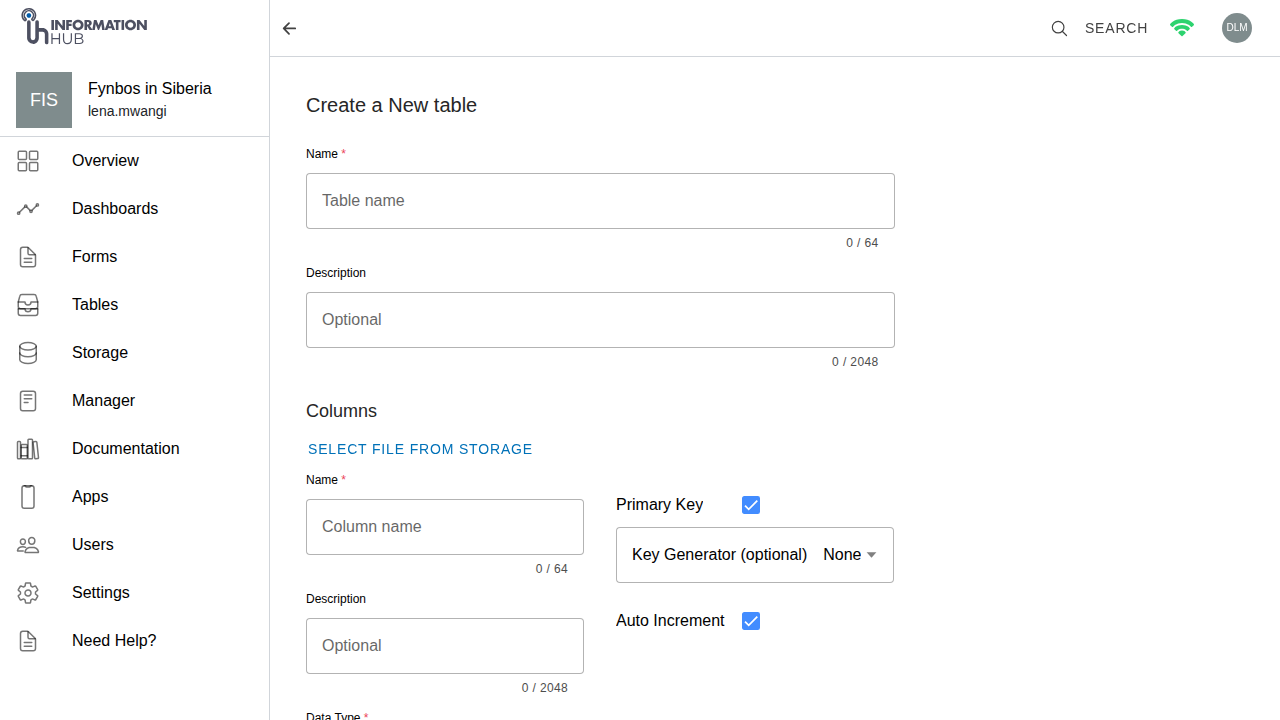
1. In the project sidebar, click **Tables**.
2. Click the **+** button to create a new table.
3. Enter the name **Species Observations**.
4. Keep the default auto-incrementing integer primary key - this gives each observation a unique ID automatically.
5. Click **Create**.
Creating the table
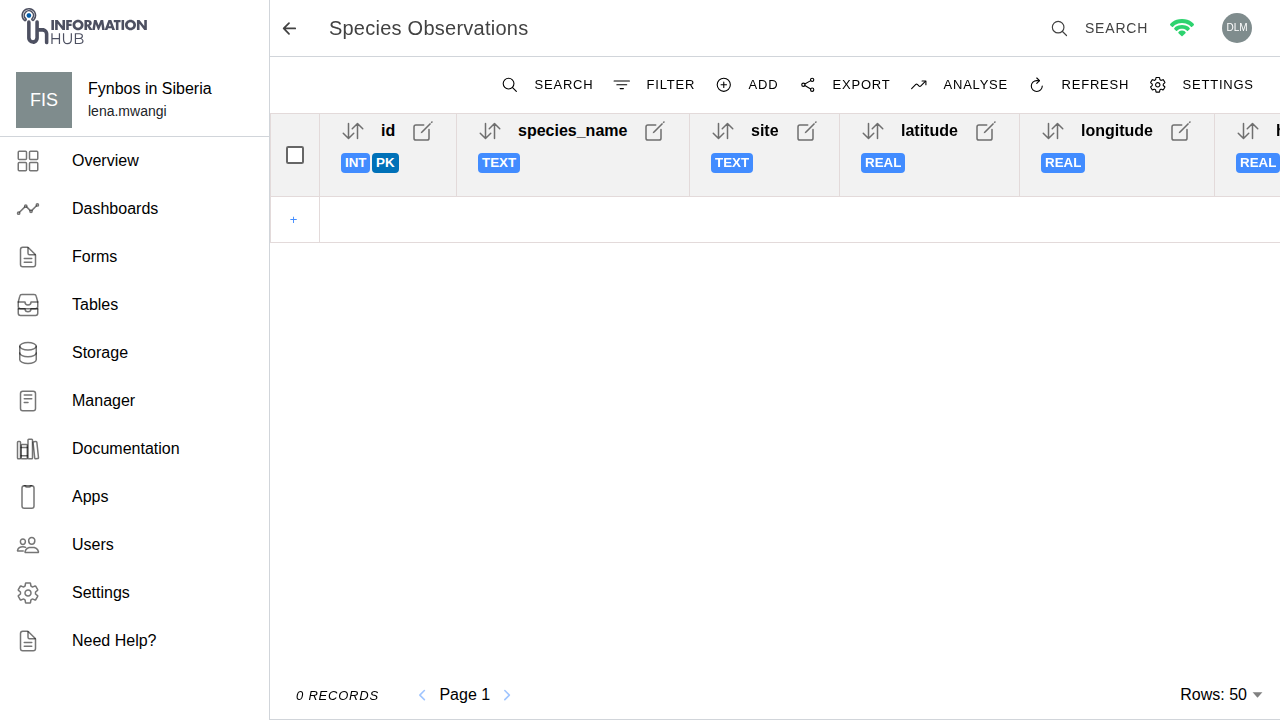
Now add the columns the team needs. For each column, click the **+** button in the table header and choose the appropriate data type:
| Column name | Data type | Purpose |
| ----------------- | --------- | ------------------------------------------ |
| species\_name | Text | Which species was observed |
| site | Text | Site Alpha or Site Beta |
| location | Text | GPS coordinates from the location question |
| height\_cm | Real | Plant height in centimetres |
| leaf\_count | Integer | Number of leaves counted |
| soil\_ph | Real | Soil pH at the observation point |
| observation\_date | Date | Date the observation was recorded |
| observer | Text | Name of the person who recorded it |
{% hint style="info" %}
The **location** column is a plain **Text** column. The Location question type on the form stores coordinates as a `latitude,longitude` string (e.g. `62.0355,129.6753`). If you want latitude and longitude stored in separate columns for dashboard use, add two **Double Precision** columns called `latitude` and `longitude` - you can then map the Location question to two separate Number questions linked to each column. For this tutorial we use a single column for simplicity.
{% endhint %}
All columns added to the table
***
## Step 5: Enter observation data
Click the **ADD** button in the toolbar, then select **Add Row**. A form appears with a field for each column. Fill in the values and click **Add** to save the row. Repeat for each observation.
Here are the first observations Dr. Mwangi's team recorded:
| species\_name | site | location | height\_cm | leaf\_count | soil\_ph | observation\_date | observer |
| ------------------- | ---------- | ---------------- | ---------- | ----------- | -------- | ----------------- | --------------- |
| Protea siberica | Site Alpha | 62.0355,129.6753 | 45.2 | 34 | 5.8 | 2026-01-15 | Dr. Lena Mwangi |
| Erica glacialis | Site Alpha | 62.0361,129.6748 | 12.7 | 156 | 5.6 | 2026-01-15 | Dr. Lena Mwangi |
| Restio permafrostii | Site Beta | 55.0084,82.9357 | 78.5 | 22 | 6.1 | 2026-01-16 | Dr. Yuki Tanaka |
| Protea siberica | Site Beta | 55.0090,82.9361 | 38.9 | 28 | 6.3 | 2026-01-16 | Dr. Yuki Tanaka |
| Erica glacialis | Site Beta | 55.0087,82.9355 | 15.3 | 189 | 6.0 | 2026-01-16 | Dr. Lena Mwangi |
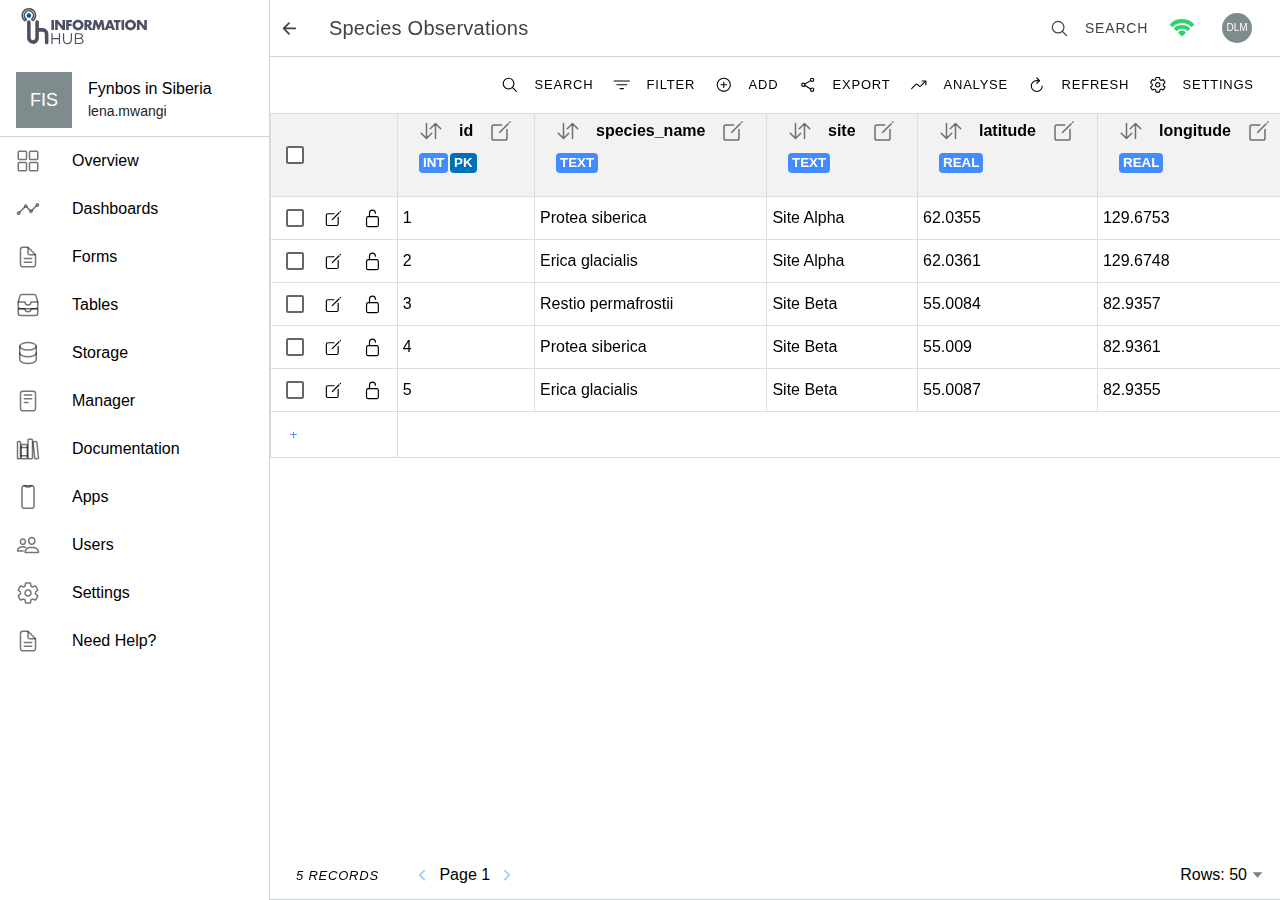
After entering all five rows, the table looks like this:
Five observations recorded
***
## Step 6: Upload files to Storage
Before heading into the field, Dr. Mwangi uploads some reference files so the team has everything in one place.
1. In the project sidebar, click **Storage**.
2. Drag and drop files into the storage area, or click the upload button. Upload:
* A photo of each field site (e.g., `site_alpha.jpg`, `site_beta.jpg`)
* The field protocol document (e.g., `field_protocol.pdf`)
3. The files appear in the storage list immediately.
Storage works like a simple file manager. You can create folders to organise files, preview images, and download anything you have uploaded. Think of it as a backup for all your project's supporting documents.
***
## Step 7: Create a data collection form
To make field data collection easier, Dr. Mwangi creates a mobile-friendly form linked to the table.
1. Click **Forms** in the project sidebar.
2. Click **Create Form**.
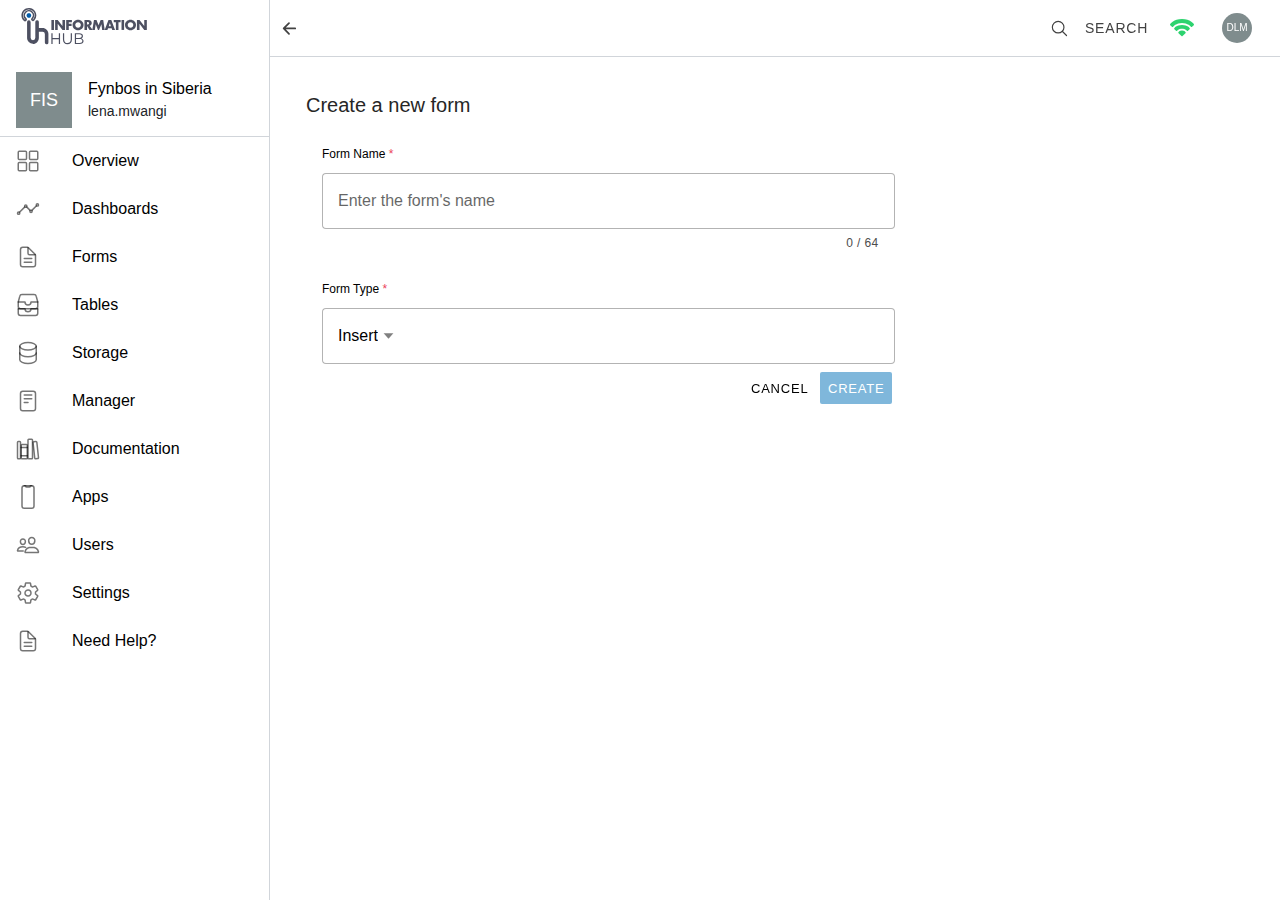
3. Enter the name **Field Observation Form** and click **Create**.
Creating the Field Observation Form
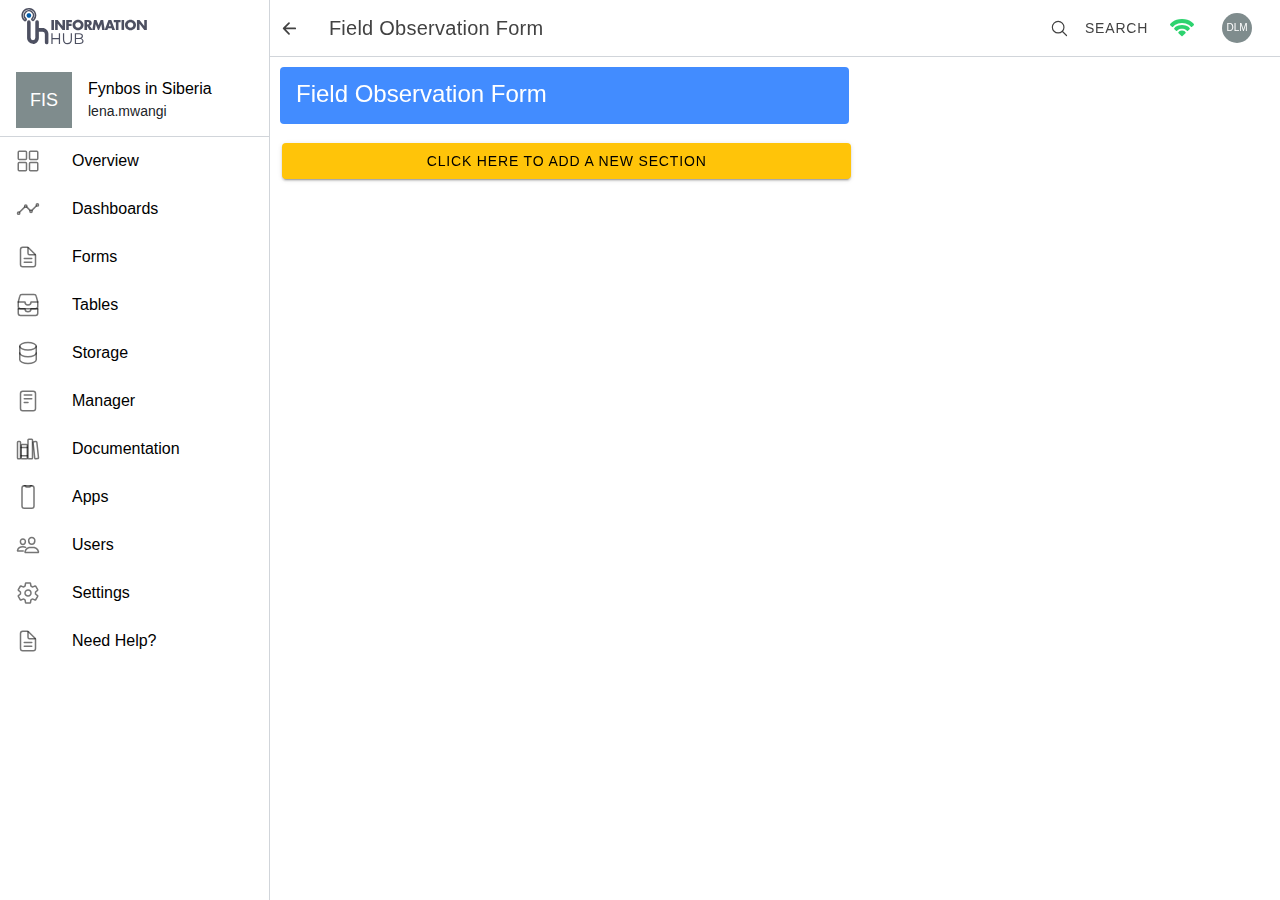
4. The form builder opens. Click **CLICK HERE TO ADD A NEW SECTION** to create a section.
5. Name the section **Observation Details**.
Now add questions - one for each column in the Species Observations table. For each question, select the matching table and column so that submitted answers are stored directly in the table.
Most questions use straightforward text or number types, but the **location** column deserves special attention:
### Using the Location question type
Instead of asking respondents to type coordinates by hand, use the **Location** question type. It provides an interactive map that makes GPS capture fast and accurate in the field.
1. Add a question and set the **Type** to **Location**.
2. Name it **Observation Location**.
3. Link it to the **location** column in the Species Observations table.
When a field worker fills in this question:
* An **interactive map** appears. They can tap or click anywhere to drop a pin and capture the coordinates.
* The **Use Current Position** button uses the device's GPS to place the pin at their exact location - ideal for field use.
* The **Edit coordinates** toggle reveals manual text fields for latitude and longitude if they need to enter coordinates by hand.
This replaces the need for separate latitude and longitude text fields and reduces errors in the field.
7. Add the remaining questions for species\_name, site, height\_cm, leaf\_count, soil\_ph, observation\_date, and observer.
8. Save the form.
The form builder in edit mode
See [Question Types](/project/forms/question-types.md) for the full guide on all available question types and their settings.
***
## Step 8: Save a draft and fix errors
Large forms can take time to fill in. Information Hub lets you save your progress and come back later.
1. Open the **Field Observation Form**.
2. Fill in just the first few fields (e.g., species\_name and site) but leave the rest blank.
3. Click **Save Draft**. The form is saved locally on your device.
4. Close the form and come back to it later - your answers will still be there.
5. When you are ready, fill in the remaining fields and submit.
If you try to submit a form with required fields left empty or invalid values, the form highlights the errors. Click on any error message to **jump directly to the problem question** so you can fix it without scrolling through the entire form.
***
## Step 9: Share the form
Dr. Mwangi needs her field team to access the form on their phones without opening the full app.
1. Open the **Field Observation Form**.
2. Click **Share**.
3. Copy the **share link** - anyone with this link can open and submit the form in their browser.
4. Use the **QR code** - print it or display it on a screen so team members can scan it with their phone camera.
You can configure whether the form requires sign-in or allows anonymous submissions. See [Share a Form](/project/forms/share-form.md) for details.
***
## Step 10: Submit field data
Now let's simulate a day of fieldwork. Open the form (either from the Forms list or via the share link) and submit three new observations. For the location, use the **Use Current Position** button or tap on the map to place a pin at the approximate coordinates:
**Submission 1:**
| Field | Value |
| ----------------- | ------------------------------ |
| species\_name | Restio permafrostii |
| site | Site Alpha |
| location | Tap map near 62.0358, 129.6751 |
| height\_cm | 82.1 |
| leaf\_count | 25 |
| soil\_ph | 5.7 |
| observation\_date | 2026-02-01 |
| observer | Dr. Lena Mwangi |
**Submission 2:**
| Field | Value |
| ----------------- | ------------------------------ |
| species\_name | Protea siberica |
| site | Site Alpha |
| location | Tap map near 62.0353, 129.6755 |
| height\_cm | 47.8 |
| leaf\_count | 36 |
| soil\_ph | 5.9 |
| observation\_date | 2026-02-01 |
| observer | Dr. Yuki Tanaka |
**Submission 3:**
| Field | Value |
| ----------------- | ----------------------------- |
| species\_name | Erica glacialis |
| site | Site Beta |
| location | Tap map near 55.0085, 82.9358 |
| height\_cm | 16.1 |
| leaf\_count | 201 |
| soil\_ph | 6.2 |
| observation\_date | 2026-02-02 |
| observer | Dr. Lena Mwangi |
After submitting all three, go back to **Tables** and open the **Species Observations** table. You should now see eight rows - the five you entered manually plus the three from the form.
***
## Step 11: See your data on a map
Dr. Mwangi wants a live view of where her observations are coming from. A **Map dashboard** shows every submitted observation as a pin on an interactive map.
### Create a dashboard
1. In the project sidebar, click **Dashboards**.
2. Click the **+** button to create a new dashboard.
3. Name it **Field Map**.
4. Click **Create**.
### Add a data source
A dashboard can only display data that has been connected to it through a **data source**. A data source is a configured link between the dashboard and one of your project's tables.
1. On the **Field Map** dashboard, click **Manage Data Source**.
2. Click **Add Data Source**.
3. Set **Data Source Type** to **Table**.
4. Enter the name **Observations** and leave the description blank.
5. Under **Select Data Source**, choose **Species Observations**.
6. Click **Test Connection** to verify the link works.
7. Click **Create**.
The data source is now listed. Click it to open the configuration view:
* In the **Configure data source** section, each column in Species Observations is listed.
* Make sure all the columns you want to use in components (at minimum: location, species\_name, site) are **enabled** (checked).
* Click **Save**.
Go back to the dashboard using the **Back** button.
### Add a Map component
1. Click **Create Component**.
2. Set **Type** to **Map**.
3. Enter the name **Observation Locations**.
4. Set the **Column Width** to 12 (full width) and an appropriate **Height**.
5. In the **Map** section, click **Add Table to Map** to add a layer.
6. Set the layer **Name** to **All Observations** and the layer **Type** to **Point Map**.
7. Set **Datasource** to **Observations**.
8. Set the **Latitude** column and **Longitude** column.
{% hint style="info" %}
Because the tutorial stores coordinates as a combined `latitude,longitude` text string in one column, you will need separate `latitude` and `longitude` columns to use the Map component. If you followed the note in Step 4 and added two Double Precision columns, select those here. If not, skip this step for now and revisit it after the [Intermediate](/tutorial/intermediate.md) section when you import data with separate coordinate columns.
{% endhint %}
9. Under **Location information**, click **Add Information Column** and select **species\_name** - this label appears when a pin is clicked.
10. Click **Update** to save the component.
The map now shows a pin for every observation in the table. Clicking a pin shows the species name. As more data is submitted, the map updates automatically when you click **Refresh**.
***
## Step 12: Explore the Marketplace
Before moving on, take a quick look at the **Marketplace**. From the Home screen, click **Marketplace** in the sidebar.
The Marketplace contains pre-built project templates created by other users. You can browse templates, preview what tables, forms, and dashboards they include, and use one to create a new project instantly - saving you the setup work.
For now, just browse and see what is available. You will learn how to create and publish your own templates in the [Advanced](/tutorial/advanced.md) section.
***
## What you have learned
* How to create a project and set its visibility
* How to set up an organisation, group, and invite team members
* How permissions work across the four-level hierarchy
* How to create a table and define columns with appropriate data types
* How to enter data manually into a table
* How to upload files to Storage for safekeeping
* How to build a form with a Location question for GPS capture in the field
* How to save form drafts and fix validation errors
* How to share a form via link and QR code
* How to submit data through a form and verify it in the table
* How to connect a table to a dashboard via a data source and create a map of your observations
* Where to find the Marketplace for project templates
***
## Next steps
In the [Intermediate](/tutorial/intermediate.md) section, you will import a larger dataset from a spreadsheet, add photo capture to your form, manage tasks with kanban boards, document your project in the wiki, build a public app, and collect data offline.