> For the complete documentation index, see [llms.txt](https://docs.informationhub.io/llms.txt). Markdown versions of documentation pages are available by appending `.md` to page URLs; this page is available as [Markdown](https://docs.informationhub.io/project/tables/view-edit-data.md).
# View and Edit Data
Once a table has columns and rows, you can browse, search, filter, add, edit, and delete data directly in the table view.
## Open a table
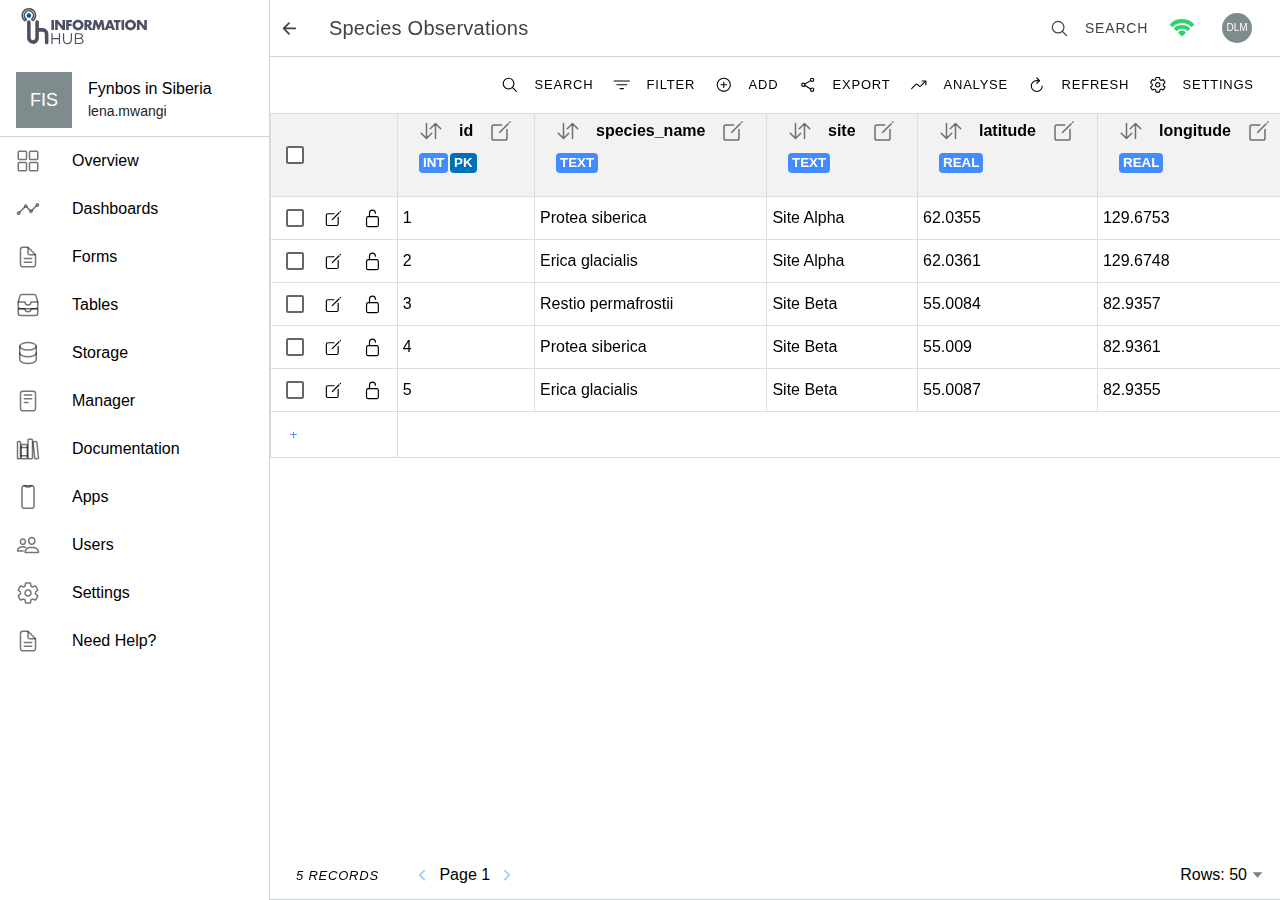
Click on a table name in the Tables list to open it. The data is displayed in a spreadsheet-like grid showing all rows and columns.
A table with data
## Toolbar overview
The toolbar above the table provides quick access to all table actions:
| Button | What it does |
| -------- | ------------------------------------------------------------- |
| Search | Opens a search box to filter rows by keyword |
| Filter | Opens the filter panel to apply column-level rules |
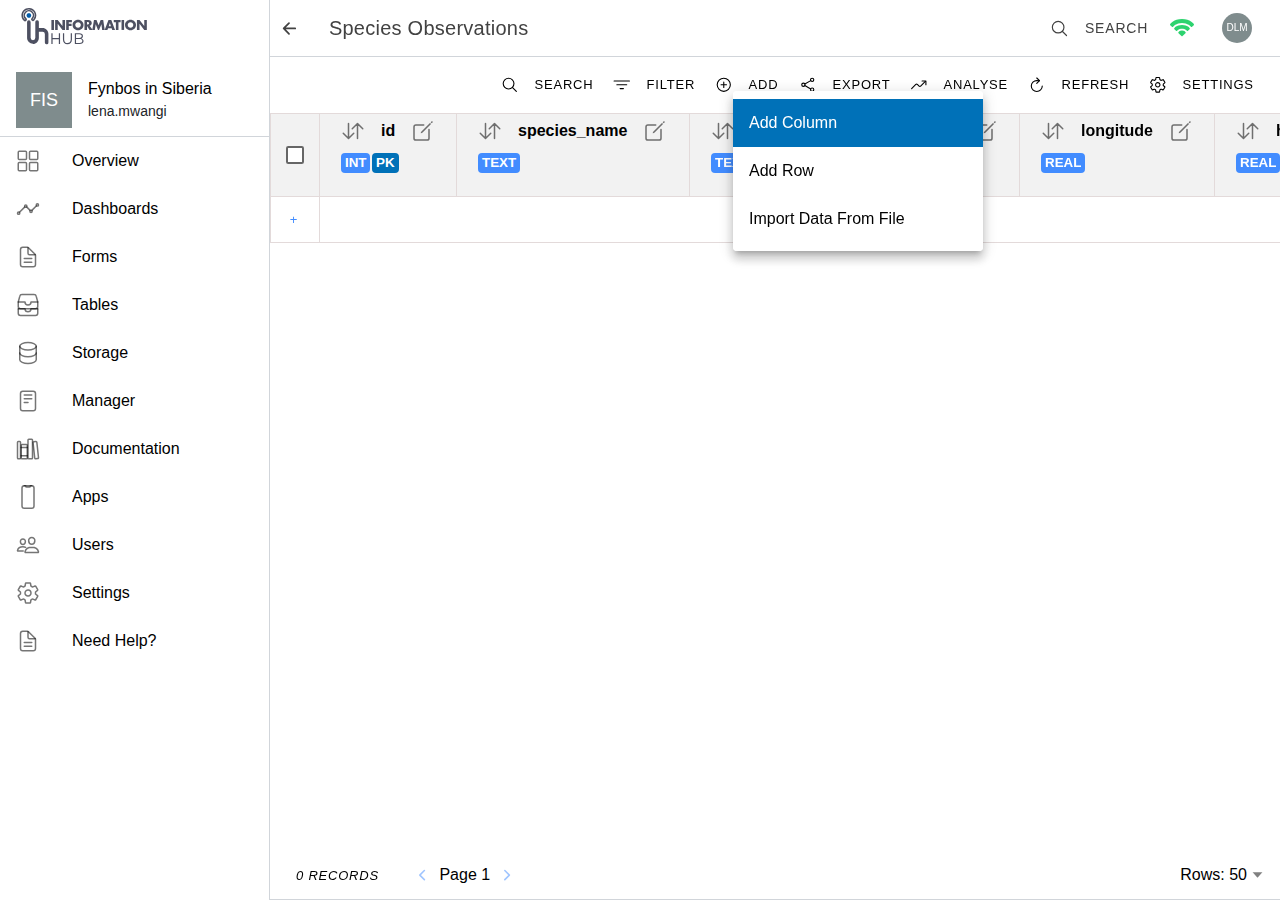
| ADD | Dropdown with three options: Add Column, Add Row, Import Data |
| Export | Opens the share and export options |
| Analyse | Opens the analysis script generator |
| Refresh | Reloads the latest data from the server |
| Settings | Opens the table settings page |
## Search
1. Click the **Search** button in the toolbar.
2. Type your search term in the box that appears.
3. The table updates to show only rows that match.
4. Click the **X** to clear the search, or **Close** to dismiss the search box.
## Filter
1. Click the **Filter** button in the toolbar.
2. The filter panel opens. Click **Add filter rule**.
3. For each rule, choose a column, an operator (such as equals, contains, or starts with), and a value.
4. Add more rules if needed - multiple rules are combined to narrow the results further.
5. Click **Apply** to filter the table.
6. To remove a rule, click the trash icon next to it.
7. To clear all filters, open the filter panel and remove all rules, then apply again.
## Add a row
1. Click the **ADD** button in the toolbar.
2. Select **Add Row** from the dropdown menu.
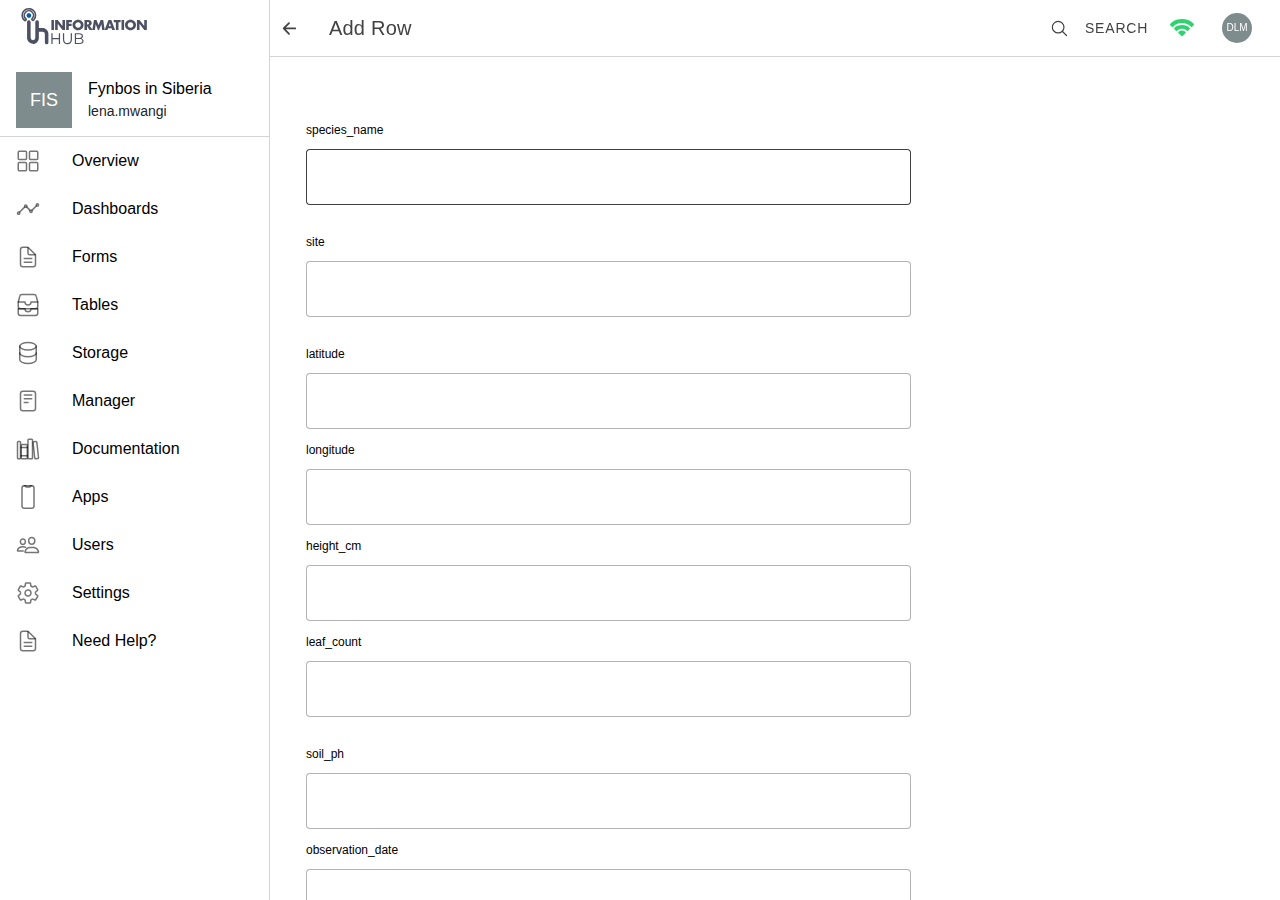
3. A form appears with a field for each column (the primary key is filled in automatically).
4. Fill in the values.
5. Click **Save** to add the row.
If the row can't be saved - for example a required value is missing, a value isn't unique, or a value doesn't match the column's type - the error message tells you which column caused the problem and why, instead of a raw backend error.
The ADD dropdown with Add Row selected
The add row form
## Edit a row
1. Click the **pencil icon** at the left side of the row you want to edit.
2. The row edit form opens with the current values pre-filled.
3. Make your changes.
4. Click **Save**.
You can also delete the row permanently from this form using the **Delete Row** button.
## Lock a row
Locking protects a row so it cannot be edited or deleted. A locked row hides its edit and delete controls and shows a closed padlock in its place. Use it to safeguard records that have been verified or approved and should not change.
### Lock or unlock a single row
Each row in the grid has a padlock button:
* On an **unlocked** row, click the **open padlock** (labelled *Lock row*) to lock it.
* On a **locked** row, click the **closed padlock** (labelled *Locked (click to unlock)*) to unlock it.
### Lock or unlock several rows at once
1. Tick the **checkboxes** on the rows you want to change.
2. In the toolbar, click **Lock N rows** or **Unlock N rows** (where N is the number selected).
### Lock or unlock everything matching a search
When a search is active, two extra buttons appear in the toolbar:
* **Lock all matching** - locks every row that matches your current search.
* **Unlock all matching** - unlocks every matching row.
### Filter by lock state
Open the **Filter** panel and use the **Lock state** option to show **All**, **Locked**, or **Unlocked** rows, then click **Execute**.
{% hint style="info" %}
Locking and unlocking are governed by permissions, and they are separate - a user may be able to lock rows but not unlock them. If the padlock buttons are missing or greyed out, ask your project administrator to check your role.
{% endhint %}
{% hint style="info" %}
To make new rows locked automatically as they are added, turn on **Lock new rows by default** on the table's Settings page. See [Create a Table](/project/tables/create-table.md).
{% endhint %}
## Select rows
* Use the **checkbox** at the start of each row to select individual rows.
* Use the **checkbox in the column header** to select or deselect all visible rows at once.
Selected rows can then be deleted in bulk.
## Delete rows
Select one or more rows using the checkboxes, then use the delete option to remove them.
{% hint style="warning" %}
Deleting rows is permanent and cannot be undone. Consider exporting your data before deleting rows.
{% endhint %}
## Sort data
Click on a column header to sort the table by that column. Click again to toggle between ascending and descending order.
## Special cell types
### JSON cells
If a column stores JSON data, clicking the cell opens a **JSON preview popup** showing the formatted JSON content. This is read-only.
### Image cells
If a column stores images, clicking the cell opens an **image gallery** showing all images attached to that row. Click any image to open it in a new browser tab.
## Pagination
Use the **Previous** and **Next** arrows at the bottom of the table to move between pages. Use the **rows per page** dropdown to control how many rows are shown at once (for example, 10, 25, 50, or 100 rows per page).
## Refresh
Click the **Refresh** button in the toolbar to reload the latest data from the server. This is useful if other team members are adding data at the same time.
## Audit log
The audit log shows the change history for your table's rows: what changed, who changed it, and when.
Audit logging is **off by default** for every table and must be turned on before any history is recorded. See
{% content-ref url="/pages/idvYHsokWigDwYI8qMlc" %}
[Create a Table](/project/tables/create-table.md)
{% endcontent-ref %}
for how to enable it from the table's Settings page.
### Opening the audit log
Once audit logging has been enabled for a table, you can open its history in two ways:
* Click the **Audit log** button (clock icon) in the table toolbar, or
* Click **Settings** in the toolbar and then **View audit log** in the **Audit log** section.
Both open the **Audit log** page for the table.
### Reading the history
Entries are listed newest first. Each entry shows:
* A coloured **action** badge - **INSERT** (a row was added), **UPDATE** (a row was changed), or **DELETE** (a row was removed).
* The **row** the change applied to.
* Who made the change (their email, or "system" for automated changes) and the date and time.
Click an entry to expand it and see the individual field changes (the values before and after). Use the **arrows** at the bottom of the page to move between pages of history; the total number of records is shown alongside.
### Rolling back a change
If you have permission, a **Roll back** button appears on each entry. Click it and confirm the prompt to return the row to that earlier state. The rollback is itself recorded in the audit log, and the resulting entry is tagged as a rollback so you can tell it apart from a normal change.
{% hint style="info" %}
If audit logging is turned off and later turned back on, the gap is shown in the log with a note that changes made while it was off were not recorded. History from before audit logging was disabled remains available, and rollback still works for those older entries.
{% endhint %}