> For the complete documentation index, see [llms.txt](https://docs.informationhub.io/llms.txt). Markdown versions of documentation pages are available by appending `.md` to page URLs; this page is available as [Markdown](https://docs.informationhub.io/project/tables/create-table.md).
# Create a Table
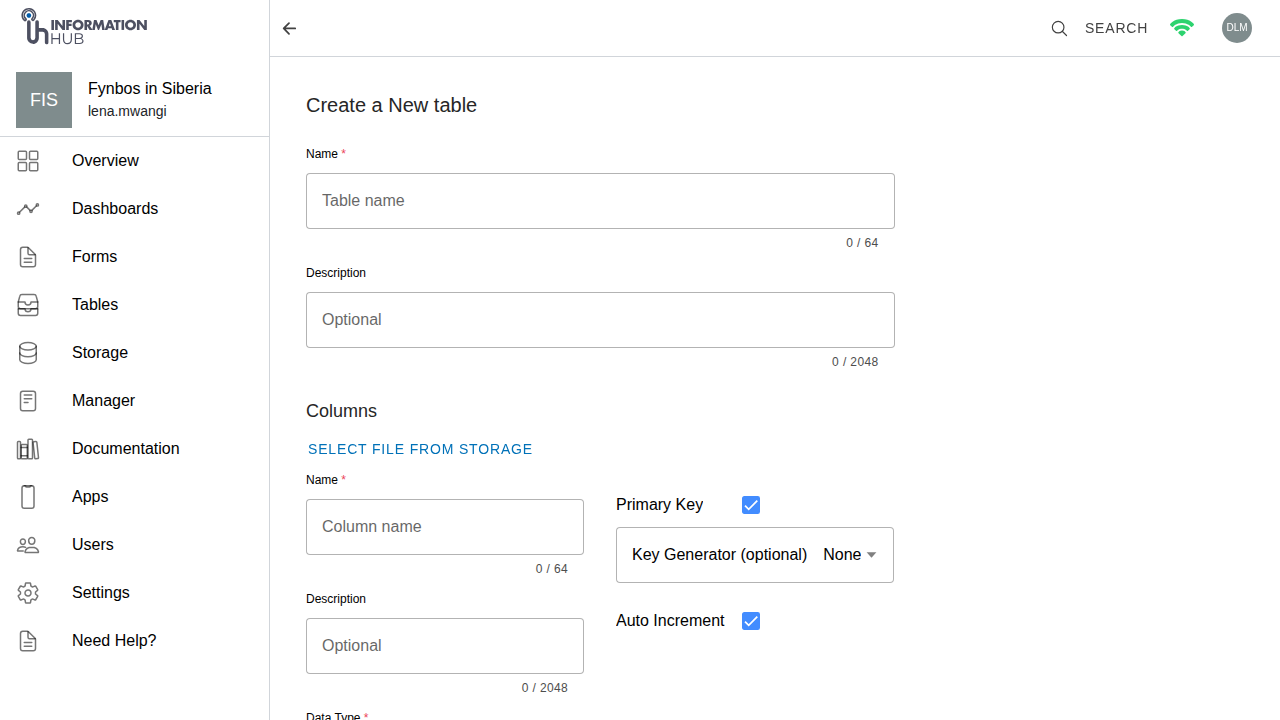
To start storing data in your project, you first need to create a table and define its columns.
## Create the table
1. Open your project and click **Tables** in the sidebar.
2. Click the **+** button to open the create table dialog.
3. Enter a name for your table.
4. The primary key is set up automatically as an auto-incrementing integer column called `id`. You can rename it if needed. To use a human-readable ID instead (for example `OBS-1`), assign a key generator to the primary key column after creating the table - see **Key generators** below.
5. Click **Create**.
Creating a new table
Your table is created with just the primary key column. Next, add the columns you need.
## Add columns
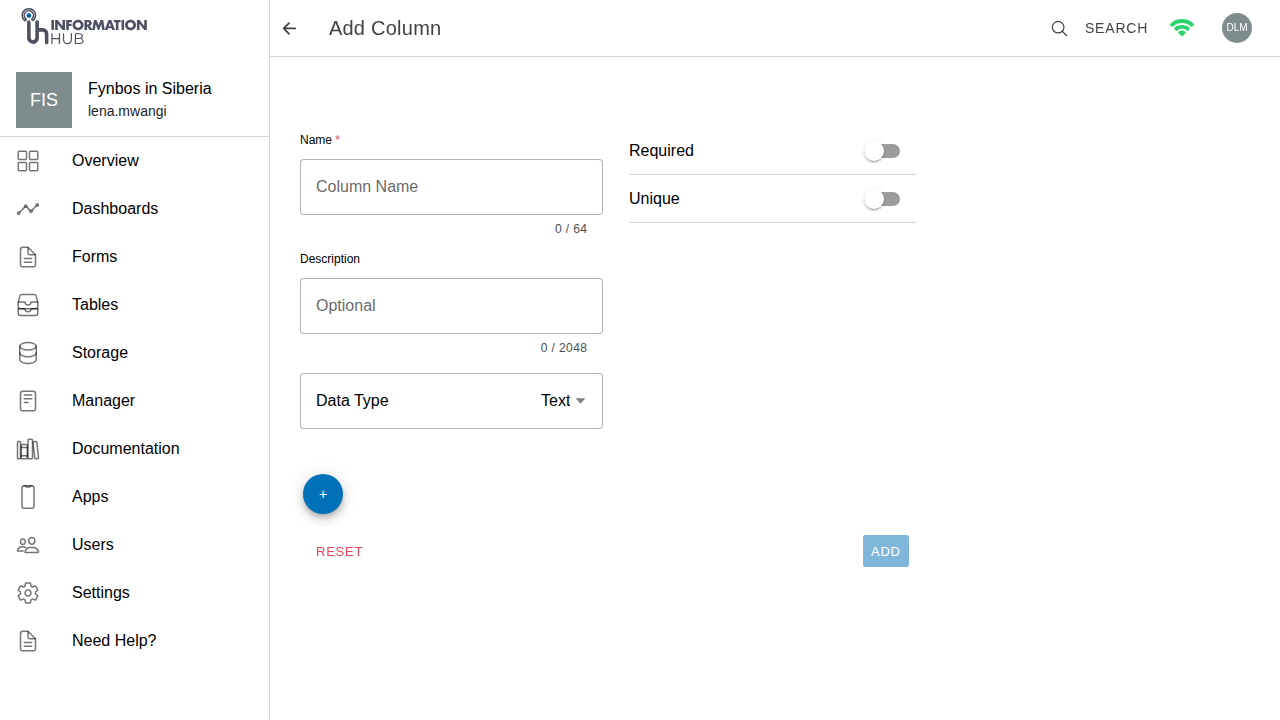
1. In the table view, click the **+** button on the table header (or click **ADD** in the toolbar and select **Add Column**).
2. Enter a name for the column.
3. Select a data type from the dropdown.
4. Optionally toggle **Required** to prevent the field from being left empty.
5. Optionally toggle **Unique** to prevent duplicate values in this column.
6. Optionally select a **Key Generator** to auto-populate the primary key with generated values (see below).
7. To add more columns at the same time, click **Add another column** and fill in the next row.
8. Click **Save** when you are done.
Adding a column
{% hint style="info" %}
You can add multiple columns in one go. Use the **Add another column** button to add extra rows before saving, so you only need to submit the form once.
{% endhint %}
When adding a new column to a table that already has rows, a **Default value** field lets you specify a value that is immediately written to all existing rows. It supports the same template tokens as key generators (such as `{autoincrement}` or `{$columnName}`). The default is only applied at the moment the column is created; rows added later are not affected.
## Column types
Choose the right data type for each column. Using the correct type prevents data entry errors and makes analysis easier.
### Text
Stores free text of any length. Use it for names, descriptions, codes, notes, or any value that does not fit a more specific type. Stored as `TEXT` in the database. Text can also be used as a primary key.
### Integer
Stores whole numbers with no decimal part. Use it for counts, IDs, or any value that is always a round number. Stored as `INT`. Integer columns can be set to **auto-increment** when used as the primary key.
### Real
Stores decimal numbers at standard precision (roughly 6 significant decimal places). Use it for measurements where exact precision beyond 6 digits is not needed - for example, pH readings, percentages, or short coordinates.
### Double Precision
Stores decimal numbers at high precision (up to 15 significant decimal places). Use it when accuracy matters - for example, GPS coordinates, financial figures, or scientific measurements. Use Double Precision over Real when in doubt.
### Yes / No
Stores a boolean true/false value. Displayed as a toggle in the data entry form. Use it for binary questions: "Collected?", "Verified?", "Active?".
### File
Stores a reference to one or more files. Each uploaded file is stored in your project's **Storage** and the cell holds the file names and their storage URLs. In the table grid, File cells render as clickable links that open the file in a new tab.
{% hint style="info" %}
**File columns are text under the hood.** The cell value is a text string in `filename[url],` format. This means you can also manually type an external URL (such as a DOI link or external resource) using the same format - for example: `Paper[https://doi.org/10.xxxx/example]`. The cell will render it as a clickable link without any upload required.
{% endhint %}
### Dropdown
Stores a selection from a predefined list of options. The options are defined when linking the column to a form question. Stored as text internally. Use it for fields with a fixed set of valid values - for example, site names, status codes, or category labels.
### Foreign Key
Stores a reference to a row in another table in the same project. The stored value is the primary key of the referenced row. Use it to link records across tables and avoid data duplication - for example, linking an observation row to a row in a Sites table instead of repeating the site name on every row.
When adding or editing a row, Foreign Key columns present a search interface to find and select the referenced record.
### JSON
Stores structured data as a JSON value in a single cell. Use it when you need to record a collection of related attributes that do not fit a flat column structure. The form builder's **JSON** question type links to this column type.
### Tabular
Stores multiple rows of structured data within a single cell. Use it for forms where respondents need to enter a variable number of sub-records in one submission - for example, multiple measurements taken at one site visit. Linked to the **Tabular** question type.
***
## Edit a column
To change a column's name, type, or settings after it has been created:
1. In the table view, click the **pencil icon** on the column header you want to edit.
2. Update the column name, type, Required/Unique toggles, or key generator assignment.
3. Click **Save**.
{% hint style="warning" %}
If you change a column's data type, a warning will appear if the change could affect existing data. Review the warning carefully before confirming.
{% endhint %}
**Converting a text column to Date or Timestamp** - open **Edit Column** on the column and change its type to Date or Timestamp. All existing values must be in ISO 8601 format (`YYYY-MM-DD` for dates, `YYYY-MM-DDTHH:MM:SS` for timestamps) for the conversion to succeed. If any value cannot be parsed, the conversion is cancelled and your data is left unchanged.
You can also delete a column permanently from the edit column form using the **Delete Column** button. This cannot be undone.
**Changing where a File column's files are stored** - a File column's storage location (its path, or its path template if it uses one) can be changed from **Edit Column**. If the column already has files stored under the old location, saving your change shows a prompt: "Move existing files?" with a summary of the old and new location. Choose **Move files** to move everything to the new location in the background, or **Cancel** to leave the existing files where they are (new files will still be saved to the new location). After a move finishes, a notification reports how many files moved successfully and how many could not be moved (for example, because a file with the same name already exists at the new location).
***
## Key generators
A key generator auto-populates the primary key column with values based on a template pattern. This is useful for human-readable sample IDs, serial numbers, or any code that follows a consistent format.
{% hint style="info" %}
If your key generator template includes literal text (for example `OBS-{autoincrement}` or `SP-{uuid[0:8]}`), the primary key column type must be **Text**, not **Integer**. Open **Edit Column** on the primary key column and change its type to Text before assigning the generator.
{% endhint %}
Key generators are **project-level** - one generator can be reused across multiple tables. They are assigned to the primary key column of a table at creation time or by editing the primary key column.
### Managing key generators
Key generators are managed from the **Tables list** page:
1. Click **Tables** in the project sidebar.
2. Click the **Key Generators** button in the toolbar.
3. Click **+** to create a new generator.
4. Enter a **Name**, an optional **Description**, and a **Template** string (see tokens below).
5. Click **Create**.
To edit or delete an existing key generator, use the edit (pencil) or delete icons next to each entry in the list.
Once a key generator exists, assign it to a table's primary key column when creating the table, or by opening **Edit Column** on the primary key column.
### Template tokens
Templates are strings that mix literal text with tokens in `{...}` syntax. Tokens are replaced with generated values when a new row is inserted.
| Token | What it produces | Example output |
| ----------------- | ----------------------------------------------------------------------- | -------------------------------------- |
| `{autoincrement}` | An atomically incrementing integer (1, 2, 3...) | `42` |
| `{uuid}` | A random v4 UUID | `f47ac10b-58cc-4372-a567-0e02b2c3d479` |
| `{cuid}` | A collision-resistant unique ID | `clh3z8k0v0000qzrmabcd1234` |
| `{date}` | Current date as `YYYY-MM-DD` | `2026-05-26` |
| `{date:FORMAT}` | Current date in a custom moment.js format | `{date:YYYYMMDD}` → `20260526` |
| `{time}` | Current time as `HH:mm:ss` | `14:32:07` |
| `{time:FORMAT}` | Current time in a custom moment.js format | `{time:HHmm}` → `1432` |
| `{datetime}` | Current date and time (ISO 8601) | `2026-05-26T14:32:07+00:00` |
| `{$columnName}` | Value of another column in the same row, referenced by its display name | `{$site}` → `Site Alpha` |
| `{columnId}` | Value of another column in the same row, referenced by its internal ID | `Site Alpha` |
### Slicing token output
Any token can be sliced to take only part of the generated value, using Python-style `[start:end]` notation immediately after the token name:
* `{uuid[0:8]}` - first 8 characters of a UUID
* `{cuid[0:12]}` - first 12 characters of a CUID
* `{autoincrement[0:4]}` - first 4 digits of the counter
### Formatters
Add `:lower`, `:upper`, or (for column references) `:slug` after the token to transform the output:
* `{uuid:upper}` - UUID in uppercase
* `{date:YYYYMMDD}` - date formatted as `20260526` (the `:FORMAT` string is the formatter for date/time tokens)
* `{siteColumnId:slug}` - column value lowercased with spaces replaced by hyphens
### Working examples
**Sequential observation IDs**
```
OBS-{autoincrement}
```
Produces: `OBS-1`, `OBS-2`, `OBS-3`, ...
**Date-prefixed short UUID**
```
{date:YYYYMMDD}-{uuid[0:8]:upper}
```
Produces: `20260526-F47AC10B`, `20260526-A3B2C1D0`, ...
**Site-prefixed sequential ID** (using the display name of the `site` column)
```
{$site:slug}-{autoincrement}
```
Produces: `site-alpha-1`, `site-beta-2`, ...
**Short CUID for compact IDs**
```
SP-{cuid[0:8]}
```
Produces: `SP-clh3z8k0`, `SP-clh3z8k1`, ...
{% hint style="info" %}
Use `{$columnName}` to reference a column by its display name - for example `{$site}` or `{$observer_name}`. This is the recommended approach as it is easy to read and does not require looking up internal IDs. If you need to reference a column by its internal ID (20-40 alphanumeric characters), you can find it by looking at the column's URL when editing it.
{% endhint %}
{% hint style="warning" %}
Key generators can only be assigned to **primary key columns**. They apply to new rows only - existing rows keep their original primary keys.
{% endhint %}
***
## Dynamic file upload paths
By default, every file uploaded into a **File** column is saved to one fixed folder in your project's Storage. A **dynamic path template** lets you instead build the folder path automatically from the values in the row - so uploads sort themselves into a tidy folder structure as they come in (for example, a folder per site, per date, or per species).
This uses the same `{token}` idea as key generators, but with a **smaller set of tokens** (see below).
### Where to set it
The setting appears in two places, and they stay in sync:
* **On a File column** - open **Edit Column** on a column whose type is File.
* **In the form builder** - on a **File Upload** question's settings.
In both places you will find:
* A **Use Dynamic Path Template** toggle.
* When the toggle is **off** - a **Save File Path** field where you pick a fixed folder using **Select Save Location** (or **Select Storage** in the form builder).
* When the toggle is **on** - an **Upload Path Template** field where you type a template such as `/{$site}/{date}`. A help icon next to it opens an **Upload Path Template Syntax** reference.
### Supported tokens
A template mixes literal folder names with `{...}` tokens. When a file is uploaded, the tokens are filled in from that row's values:
| Token | What it produces |
| --------------- | ----------------------------------------------------------------------------------------- |
| `{$columnName}` | The value of another column in the same row, referenced by its display name (recommended) |
| `{columnId}` | The value of another column, referenced by its internal ID |
| `{date}` | Current date, `YYYY-MM-DD` by default |
| `{date:FORMAT}` | Current date in a custom format, e.g. `{date:YYYYMMDD}` |
| `{time}` | Current time, `HH-mm-ss` by default |
| `{datetime}` | Current date and time |
| `{uuid}` | A random unique ID |
Slicing (`{uuid[0:8]}`) and the `:lower`, `:upper`, and `:slug` formatters work here too, exactly as they do for key generators. `:slug` is handy for turning a free-text value into a safe folder name (lowercased, spaces and symbols replaced with dashes).
{% hint style="warning" %}
Unlike key generators, file upload paths do **not** support `{autoincrement}` or `{cuid}`. If you use them here, they are treated as column references and will fail to resolve.
{% endhint %}
Values are cleaned up automatically for use as folder names - spaces become underscores and characters that are not allowed in a path (such as `< > : " | ? *`) are removed. Uploaded files are always kept inside your own project's storage area.
### Make sure referenced columns always have a value
{% hint style="warning" %}
Every column referenced in an Upload Path Template **must have a value at submit time**. If a referenced column is empty when the form is submitted, the upload cannot build its folder path and **the whole submission fails** with a "cannot resolve upload path template" error.
If a template references a column that is hidden or optional, give that question a **default value** in the form builder. The platform fills empty answers with their default before submitting, which keeps the path resolvable.
{% endhint %}
### Example
A template of:
```
observations/{$site:slug}/{date:YYYY}
```
files an upload for "Site Alpha" in 2026 under `observations/site-alpha/2026/`, and one for "Site Beta" under `observations/site-beta/2026/`. All files uploaded in the same submission for that column go into the same folder, each under its own file name.
***
## Table settings
The **Settings** button in the table toolbar opens the table settings page, where you can:
* **Rename the table** - update the table name and click Save.
* **Lock new rows by default** - turn on this toggle so that every row added to the table is locked automatically. Locked rows cannot be edited or deleted until they are unlocked. See [View and Edit Data](/project/tables/view-edit-data.md#lock-a-row) for how locking works.
* **Clear all data** - deletes every row in the table but keeps all the columns and structure intact.
* **Delete the table** - permanently removes the table and all its data.
{% hint style="warning" %}
**Clear all data** and **Delete table** are permanent actions and cannot be undone. Export your data first if you need a backup.
{% endhint %}
### Audit log
Audit logging records every insert, update, and delete made to a table's rows, along with who made the change. It is **off by default** for every table and must be turned on by a project member with permission to configure it.
1. Open the table and click **Settings** in the toolbar.
2. In the **Audit log** section, turn on the **Enable audit log** toggle.
3. Once enabled, click **View audit log** to see the recorded history for the table.
{% hint style="info" %}
If you don't see the **Audit log** section or the toggle, you don't have permission to configure or view auditing for this project. Ask a project administrator.
{% endhint %}
{% hint style="warning" %}
Turning the toggle off stops new changes from being recorded, but existing history is kept. A gap is shown in the audit log for the period auditing was off.
{% endhint %}
For details on reading entries and rolling back a row, see
{% content-ref url="/pages/kI3oquG6j4oqFuLy89Wj" %}
[View and Edit Data](/project/tables/view-edit-data.md)
{% endcontent-ref %}
.