> For the complete documentation index, see [llms.txt](https://docs.informationhub.io/llms.txt). Markdown versions of documentation pages are available by appending `.md` to page URLs; this page is available as [Markdown](https://docs.informationhub.io/project/forms/create-form.md).
# Create a Form
This page walks you through creating a new form in your project and building it out with sections and questions.
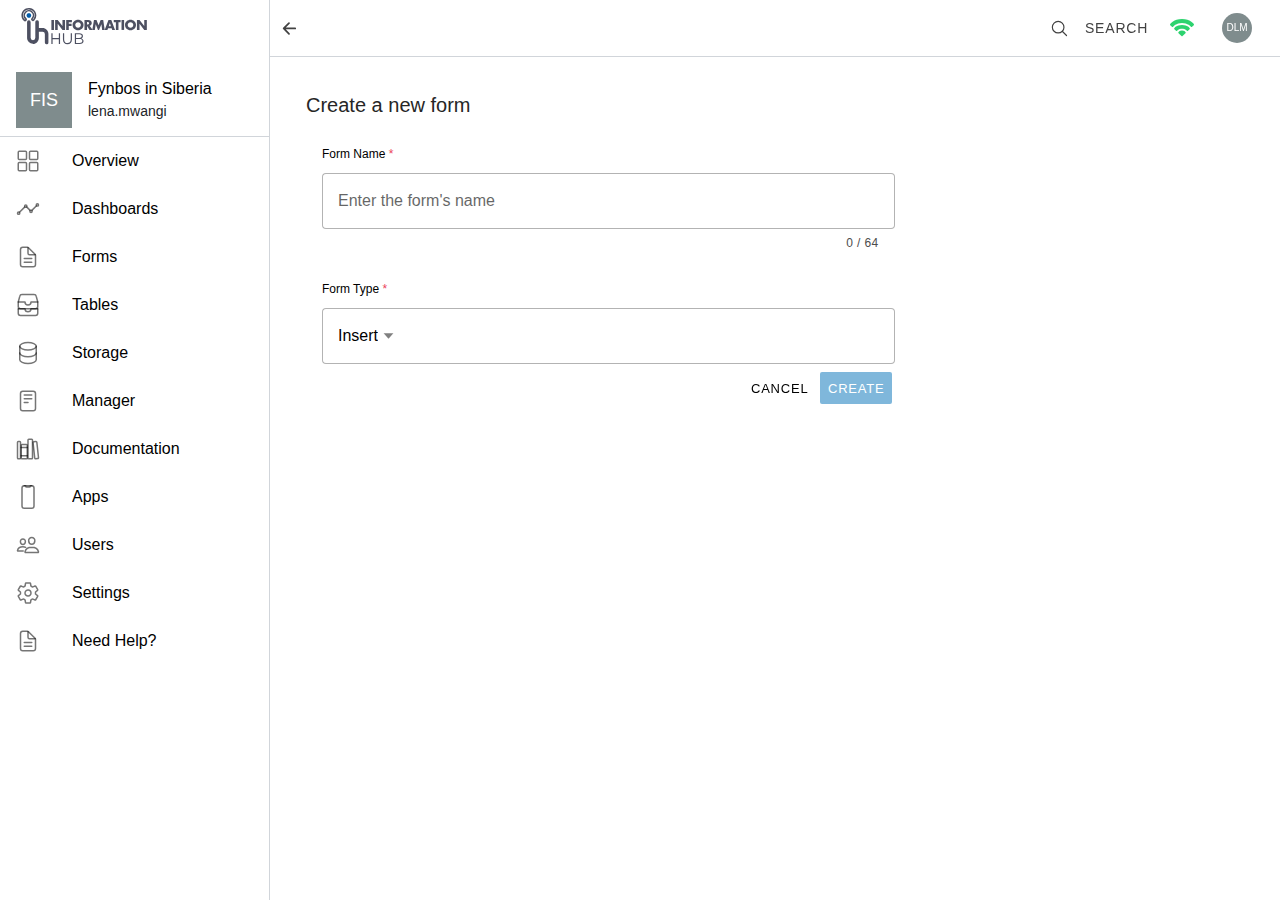
## Step 1 - Create the form
1. Open your project and click **Forms** in the project sidebar.
2. Click the **Create Form** button in the top-right corner.
3. Enter a **name** for your form (3 to 64 characters).
4. Select the **Form Type**:
* **Insert** - the default type. Each submission creates a new row in the linked table. Use this for collecting new observations, records, or entries.
* **Update** - each submission edits an existing row in a linked table. When you choose Update, you must also select the **table** to update and tick the **columns** you want the form to be able to edit.
5. Click **Create**.
Creating a new form
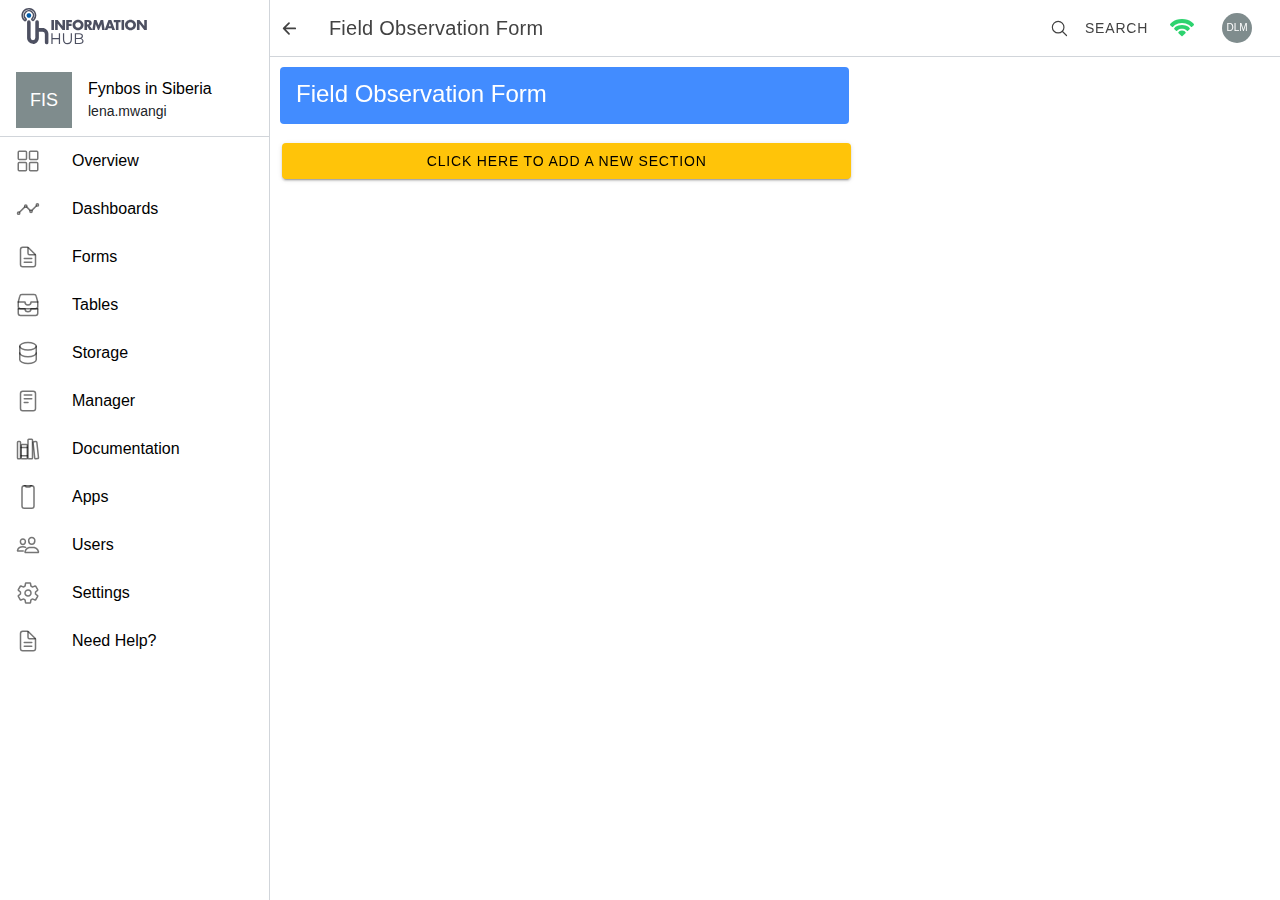
The form builder opens. You will see an empty form with the name you chose as the header.
{% hint style="info" %}
For Update-type forms, the table picker and column checklist appear as soon as you select "Update". Tick only the columns you want respondents to be able to change.
{% endhint %}
## Step 2 - Add sections
Forms are organised into **sections**. Each section can contain one or more questions. Sections help you group related questions together and make longer forms easier to navigate.
1. Click **CLICK HERE TO ADD A NEW SECTION** at the bottom of the page to add your first section.
2. Click the **section name** to enter inline edit mode - type a name (e.g. "Observation Details") and click **Save** to confirm, or **Delete** to remove the section entirely.
The form builder in edit mode
## Step 3 - Add questions
To add a question within a section:
1. Click **CLICK HERE TO ADD A QUESTION** inside the section.
2. Click the question name to enter edit mode and type your question label - this is what the person filling in the form will see.
3. Choose a **question type** from the Type dropdown (see [Question Types](/project/forms/question-types.md) for the full list).
4. Click **Save to table** to choose the table this question's answer will be stored in. If the table you need does not exist yet, click **Create Table** in the picker to create one without leaving the form builder.
5. Click **Save to column** to choose the specific column. If the column does not exist, click **Create column** in the picker to add a new column to the linked table.
6. Click **Save** to save the question, or **Delete** to remove it.
## Configuring question properties
Each question has a set of toggles and settings you can adjust:
* **Required** - makes the question mandatory. The form cannot be submitted without an answer.
* **Hidden** - hides the question from the person filling in the form. Useful for metadata or default values.
* **Locked** - prevents respondents from changing the pre-filled value. Use this when you want to display information without letting the respondent edit it.
### Expanded configuration panel
Click the **cog icon** on a question card to open its expanded configuration panel. This gives you access to:
* **URL Query Param Key** - if you set a key here, the field will be pre-filled automatically when the form URL includes a matching query parameter (e.g. `?site=plot-42`).
* **Default value** - a value that is pre-filled when the form loads, which the respondent can then change (unless the question is Locked).
* **Icon Type** - selects the icon shown alongside this question in "Icons and Text" layout forms. Options include Camera, Video, Text, Audio, Location, Help, Tag, Paperclip, Split, and Merge.
* **Icon Text** - the label shown next to the icon in icon-layout forms.
### Short text question - extra options
Short text questions have additional length controls in the expanded panel:
* **Min length / Max length** - restricts the number of characters allowed.
* **Min words / Max words** - restricts the number of words allowed.
### Dropdown, Multi-Radio, and Multi-Checkbox questions - options list
For these question types, you manage the list of available choices directly in the question card:
* Click an option label to edit its text inline.
* Click **Remove** next to an option to delete it.
* Drag the reorder handle to change the order of options.
* Click **Add Option** (or **Add Multi-Option**) to add a new blank option.
* For Dropdown questions only, toggle **Allow new items** to let respondents type a custom value that is not in the predefined list.
## Reordering sections and questions
To reorder sections or questions after you have built the form, use the **Reordering** card in Form Settings (see [Form Settings](/project/forms/form-settings.md)).
{% hint style="info" %}
When someone is filling in a long form, they can save their progress as a draft and resume later - see [Offline Forms](/project/forms/offline-forms.md#saving-your-progress-as-a-draft).
{% endhint %}