> For the complete documentation index, see [llms.txt](https://docs.informationhub.io/llms.txt). Markdown versions of documentation pages are available by appending `.md` to page URLs; this page is available as [Markdown](https://docs.informationhub.io/home/projects.md).
# Projects
The Projects page shows all the projects you have access to. This includes projects you own, projects shared with you through organisations or groups, and public projects you have joined.
Your projects on the home screen
## Browsing projects
Your projects appear as cards on the home screen. Click on any project card to open it and access its data, forms, tables, and other features.
Use the **search bar** at the top of the page to filter projects by name. This is helpful when you have many projects and need to find a specific one quickly.
In the top-right corner of the page toolbar you will also find:
* **User avatar button** - click your avatar to quickly access your account settings.
* **Connectivity indicator** - shows whether you are currently online or offline. This matches the indicator in the sidebar header and updates automatically as your network status changes.
## Creating a new project
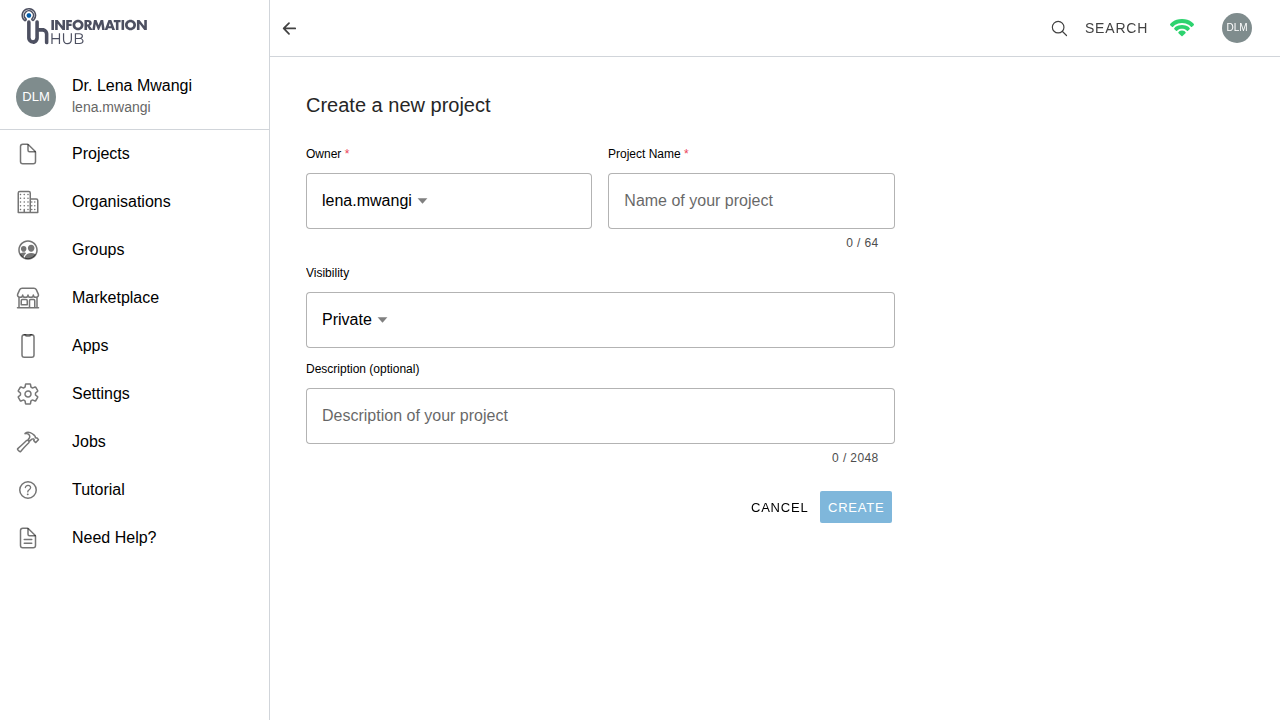
To create a new project:
1. Click the **+** button on the Projects page.
2. Enter a **name** for your project.
3. Select the **owner** — this can be yourself, an organisation, or a group.
4. Set the **visibility** to either public or private.
5. Optionally add a **description** to help others understand the purpose of the project.
6. Click **Create**.
Creating a new project
## Project visibility
* **Public** projects are visible to all Information Hub users. Anyone can find and view them.
* **Private** projects are only visible to members who have been explicitly added.
{% hint style="info" %}
You can change a project's visibility later in its settings.
{% endhint %}
## Accessing a project
Click on a project card to open it. Once inside a project, you will see a separate sidebar with project-level navigation including forms, tables, dashboards, and more.